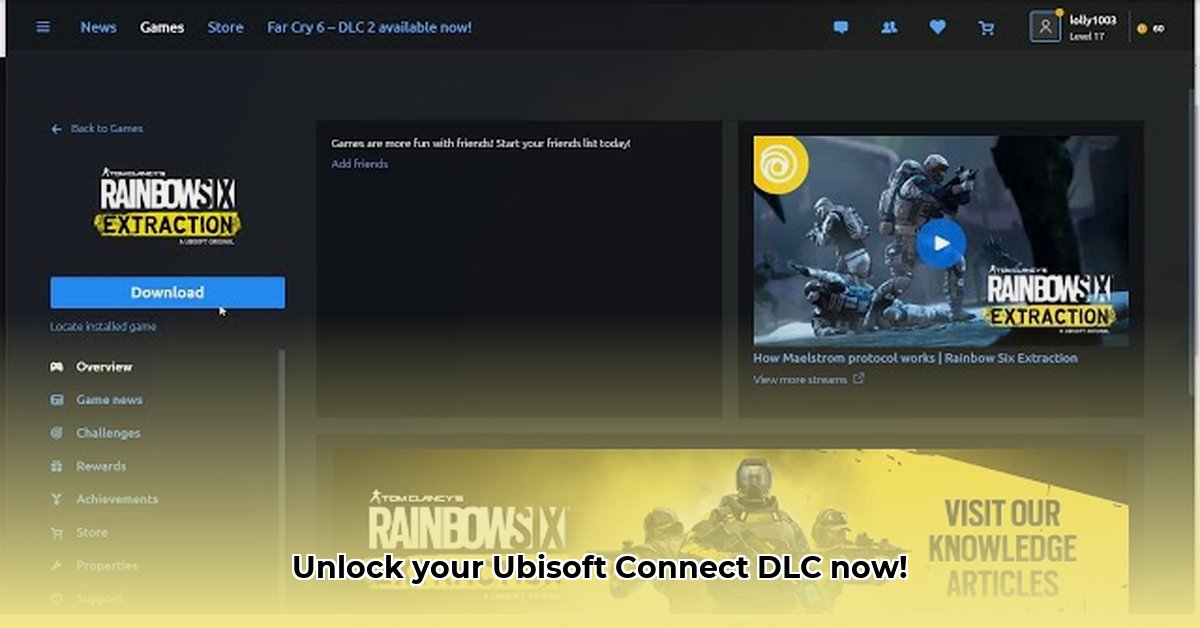
This guide provides a clear, step-by-step process for installing downloadable content (DLC) through Ubisoft Connect. Understanding how to install DLC is crucial, especially given the growing DLC market and Ubisoft's significant role within it. This guide will help you seamlessly integrate new content into your gaming experience.
Getting Started: Prerequisites
Before you begin installing your DLC, ensure you have the following:
A Stable Internet Connection: A reliable internet connection is essential for downloading DLC, which can range in size from a few megabytes to several gigabytes. A slow or unstable connection can lead to lengthy download times or even incomplete downloads.
A Ubisoft Connect Account: You'll need an active Ubisoft Connect account to access and install your purchased DLC. Sign up for free if you don't already have one. This account acts as your central hub connecting you to your Ubisoft games and all associated content.
Ownership of the Base Game: Remember, DLC is supplemental content. You must own the base game to which the DLC is related. Otherwise you will be unable to install or use it.
DLC Purchase Confirmation: Before starting the installation process, double-check your purchase history on the Ubisoft Store or within your Ubisoft Connect account to ensure you have indeed bought the DLC.
Installing Your DLC: A Step-by-Step Guide
Now that you've met the prerequisites, let's dive into the installation process. Follow these steps carefully, and you’ll be enjoying your new DLC in no time.
Step 1: Launch Ubisoft Connect. Open the Ubisoft Connect application on your computer. It's usually located in your start menu or applications folder. This application serves as your central access point to your library of Ubisoft games and their associated DLC.
Step 2: Locate Your Game. Navigate to your game library within Ubisoft Connect. Find the game for which you've purchased DLC. This library functions as a digital catalog of all your Ubisoft games.
Step 3: Access the DLC Section. Select your game. You should see an option to view its available content, including any DLC you've purchased. Often, you’ll find this option under tabs like "DLC," "Add-ons," or "In-Game Content."
Step 4: Initiate the Download and Installation. Next to the specific DLC you wish to install, you'll find a button that typically reads either "Download" or "Install." Click it to initiate the download and installation process. Many games directly install DLC upon completion of a download.
Step 5: Monitor Download Progress. Ubisoft Connect will show a progress bar indicating the download's status. The estimated download time will vary based on the DLC's size, your internet speed, and the current server load. While the download progresses, you can perform other tasks on your computer, but it's wise to keep an eye on progress to prevent unforeseen interruptions.
Step 6: Post-Download Verification. Once the download is complete, the DLC usually installs automatically. However, you should always verify this. Launch the game and check if the new content is available. The location of new content varies from game to game. Look in the main menu, inventory sections, or in-game shops.
Step 7: In-Game Confirmation. After launching your game, check if the DLC content appears. If it does not, refer to the troubleshooting section below. The appearance of the new content will be game-specific. Some games might require additional steps, such as character selection or a new game start.
Troubleshooting: Common Issues and Solutions
Despite the simplicity of the installation process, some users might encounter problems. Below is a table outlining common issues and their solutions:
| Problem | Solution |
|---|---|
| Download Error | Check your internet connection. Restart your router and computer. If the problem persists, consult Ubisoft's support website for assistance or try again later. Poor server connectivity is also a possible cause. |
| Installation Failure | Ensure you have sufficient free hard drive space. Restart your computer and try again. Consider reinstalling the base game if problems persist. Corrupted game files can also cause this issue. |
| DLC Not Appearing In-Game | Verify the DLC installation was successful. Restart both Ubisoft Connect and the game. Check the game's official forums for advice from other players. Some DLC might require certain steps in-game to be activated. |
| Game Crashes After Installation | Verify the game's system requirements are met. Contact Ubisoft support for technical assistance. If available, try updating your game to the most recent version. |
Understanding Ubisoft Connect and the DLC Market
Ubisoft Connect isn't just a simple download manager; it's a vital component of the Ubisoft gaming ecosystem. It plays a crucial role in managing games, installing DLC, and connecting players. The DLC market itself is a significant revenue stream for game developers, influencing the development and release schedules of many games. The growth and evolution of the DLC market continue to impact the overall gaming landscape, making understanding the installation process even more important.
Remember to always refer to Ubisoft's official support website (https://www.ubisoft.com/en-us/help) for the most up-to-date information and assistance. This guide aims to provide a basic understanding, but specific issues or game-related problems might necessitate additional troubleshooting from the official sources.
⭐⭐⭐⭐☆ (4.8)
Download via Link 1
Download via Link 2
Last updated: Friday, May 02, 2025